> ## Documentation Index
> Fetch the complete documentation index at: https://docs.clawup.org/llms.txt
> Use this file to discover all available pages before exploring further.
# Submitting MCP Tools
> Submit a Model Context Protocol tool to the ClawUp Tool Marketplace
> Read this online: [docs.clawup.org/src/mcp-submissions](https://docs.clawup.org/src/mcp-submissions)
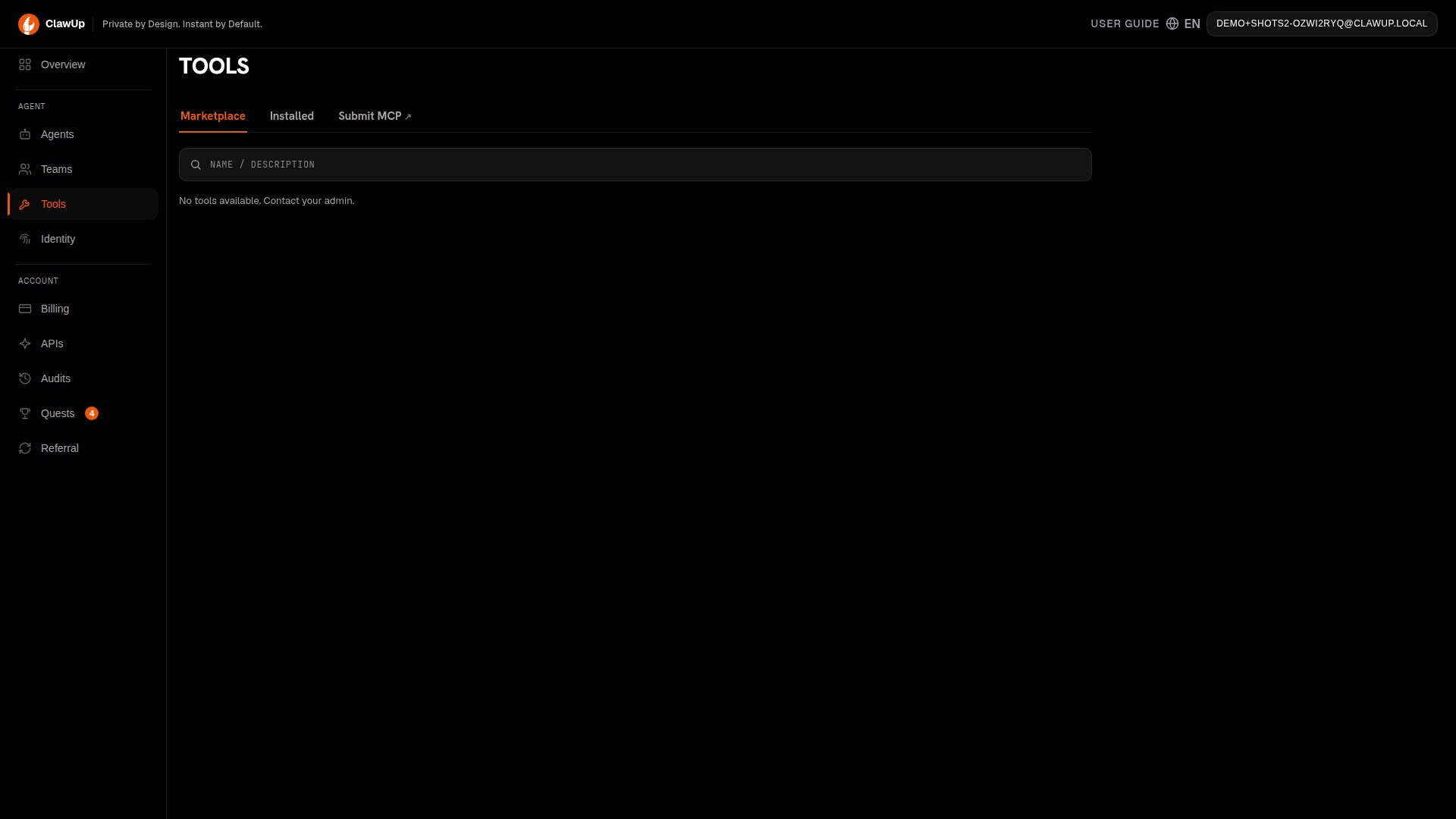
The **Tool Marketplace** in ClawUp lets any user submit a Model Context Protocol (MCP) server for review. Once the admin approves it, it appears in every user's marketplace and can be bound to any Agent with one click. In the app, this all lives under **Tools** in the left sidebar, which has three tabs: **Marketplace**, **Installed**, and **Submit MCP**.
 > **Need a review?** Ping the admin on the [@clawup](https://t.me/clawup) Telegram channel after you submit — that's the fastest way to get eyes on a pending entry.
This guide walks you through submitting a tool, what happens during review, and how to handle a rejection.
***
## Why MCP?
The Model Context Protocol solves a wiring problem that's otherwise N×M painful: N tools you want your agent to use, M LLM providers and runtimes that each speak their own tool-calling dialect. Before MCP, every (tool, provider) combo needed a bespoke adapter — a Slack tool that worked in OpenAI's function-calling format had to be re-implemented for Anthropic's tool-use format, and again for any in-house runtime. That cost compounded fast and froze most agent platforms into one-provider silos.
MCP defines a small, transport-agnostic JSON-RPC-style contract: a tool exposes its capabilities (`tools/list`), accepts calls (`tools/call`), and optionally streams events. The model side implements the client once and can talk to any MCP server. Anthropic, OpenAI, OpenRouter, and the open-source agent runtimes have all converged on this contract.
For ClawUp specifically, the protocol is load-bearing in three ways:
1. **Provider freedom.** A user can switch their Agent from `claude-sonnet-4-6` to `gpt-5.4` without re-binding any tools — the MCP layer is what the runtime calls into, not the model. This is why the Tool Marketplace lists tools with no per-provider variants.
2. **Runtime portability.** OpenClaw and Hermes are different runtimes with different internal architectures, but both speak MCP. A tool submitted to the marketplace is usable by every Agent on every runtime, today and as new runtimes are added.
3. **Network effects in the marketplace.** Tools are *external HTTPS services* — a submitter doesn't ship code into the runtime image, doesn't need ClawUp to deploy anything, doesn't need to wait for a release. They post a `server.json`, get reviewed once, and every user on the platform can bind it instantly. One person's Firecrawl integration becomes everyone's. Without MCP that hand-off would require a code change in ClawUp itself.
That's the lever the Tool Marketplace pulls — the rest of this page is the mechanics of how a submission gets there.
***
## Who can submit?
Any signed-in ClawUp user. The admin only steps in at the review stage — to nudge them after you submit, message the [@clawup](https://t.me/clawup) Telegram channel.
You can have at most **5 pending submissions** at a time. After one is approved or rejected, you can submit again. There's no cap on lifetime submissions.
***
## Before you submit
You'll need:
| | |
| ---------------------------- | ---------------------------------------------------------------------------------------------------------------------------------------------------------------------------------------------------------------------------------------------------------------------------------------- |
| **A reachable MCP endpoint** | A public HTTPS URL like `https://my-mcp.example.com/mcp`. ClawUp probes the URL during review, so it must respond from the public internet. Loopback (`127.0.0.1`, `localhost`), private addresses (`10.x`, `192.168.x`, `169.254.x`), and `*.internal` hostnames are rejected up front. |
| **A transport** | `http` (HTTP-streaming MCP — most common) or `sse` (legacy Server-Sent Events). |
| **An auth scheme** | `none` if the endpoint is fully public, or `api_key` if users will provide a key when binding the tool to their Agent. |
| **A unique name** | Names are case-insensitive and unique across the whole marketplace. If yours collides, you'll get a 409 with `MCP_REGISTRY_NAME_EXISTS`. |
***
## Submit a tool from the dashboard
1. In the left sidebar, click **Tools** — you'll land on the **Marketplace** tab.
2. Click the **Submit MCP** tab. This opens its own **Submit** / **My submissions** sub-tabs.
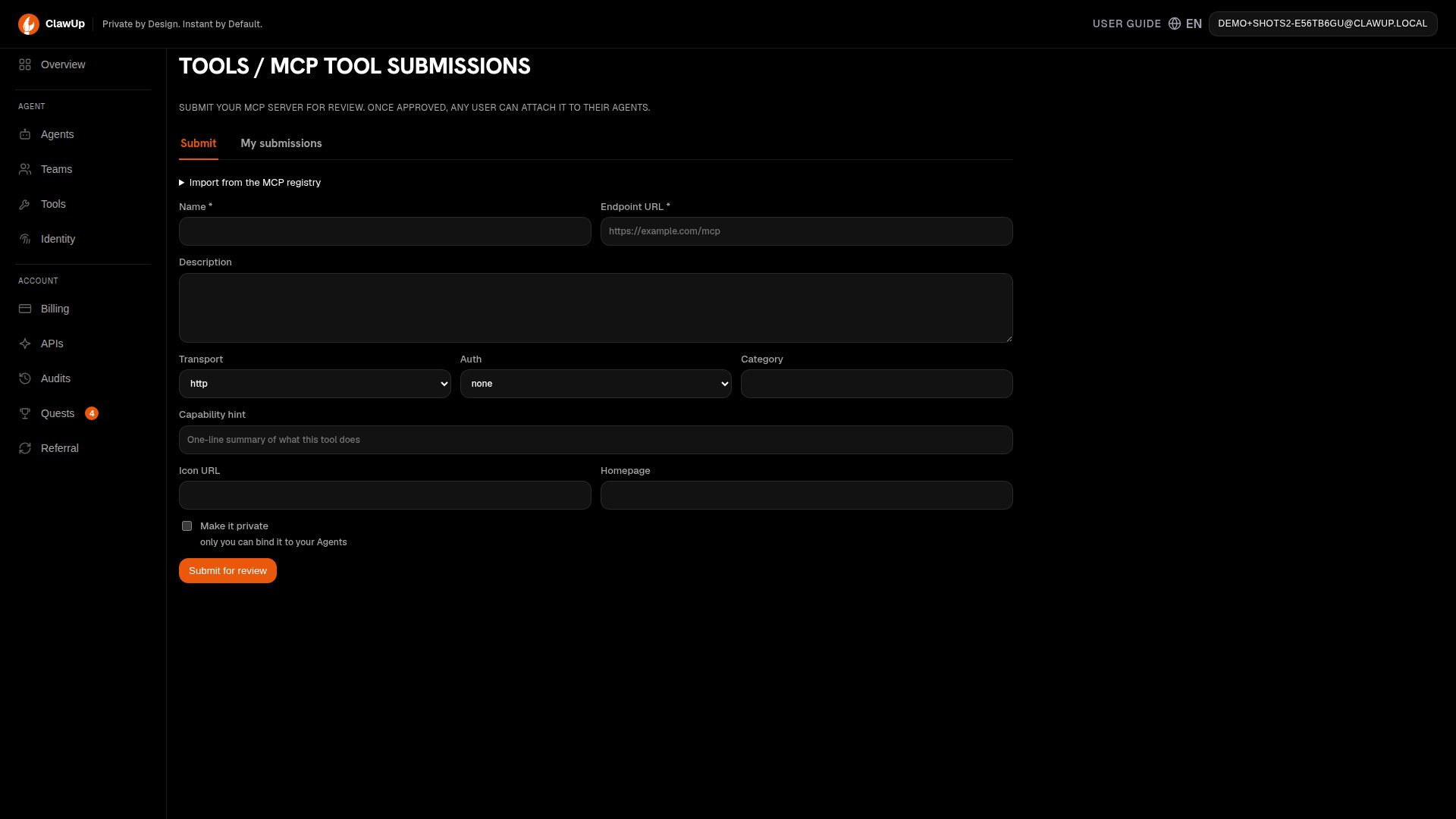
3. On the **Submit** sub-tab, fill in the form:
* **Name** — short, unique, user-facing (e.g. `Firecrawl Search`).
* **Endpoint URL** — the public HTTPS URL.
* **Description** — what the tool does.
* **Transport** — `http` or `sse`.
* **Auth** — `none` or `api_key`.
* **Category**, **Capability hint**, **Icon URL**, **Homepage** — optional but recommended; they show up on the tool card.
* **Make it private** — leave unchecked to make the tool available to every user once approved, or check it to keep it to yourself: only you can bind it to your Agents.
4. Click **Submit for review**.
> **Need a review?** Ping the admin on the [@clawup](https://t.me/clawup) Telegram channel after you submit — that's the fastest way to get eyes on a pending entry.
This guide walks you through submitting a tool, what happens during review, and how to handle a rejection.
***
## Why MCP?
The Model Context Protocol solves a wiring problem that's otherwise N×M painful: N tools you want your agent to use, M LLM providers and runtimes that each speak their own tool-calling dialect. Before MCP, every (tool, provider) combo needed a bespoke adapter — a Slack tool that worked in OpenAI's function-calling format had to be re-implemented for Anthropic's tool-use format, and again for any in-house runtime. That cost compounded fast and froze most agent platforms into one-provider silos.
MCP defines a small, transport-agnostic JSON-RPC-style contract: a tool exposes its capabilities (`tools/list`), accepts calls (`tools/call`), and optionally streams events. The model side implements the client once and can talk to any MCP server. Anthropic, OpenAI, OpenRouter, and the open-source agent runtimes have all converged on this contract.
For ClawUp specifically, the protocol is load-bearing in three ways:
1. **Provider freedom.** A user can switch their Agent from `claude-sonnet-4-6` to `gpt-5.4` without re-binding any tools — the MCP layer is what the runtime calls into, not the model. This is why the Tool Marketplace lists tools with no per-provider variants.
2. **Runtime portability.** OpenClaw and Hermes are different runtimes with different internal architectures, but both speak MCP. A tool submitted to the marketplace is usable by every Agent on every runtime, today and as new runtimes are added.
3. **Network effects in the marketplace.** Tools are *external HTTPS services* — a submitter doesn't ship code into the runtime image, doesn't need ClawUp to deploy anything, doesn't need to wait for a release. They post a `server.json`, get reviewed once, and every user on the platform can bind it instantly. One person's Firecrawl integration becomes everyone's. Without MCP that hand-off would require a code change in ClawUp itself.
That's the lever the Tool Marketplace pulls — the rest of this page is the mechanics of how a submission gets there.
***
## Who can submit?
Any signed-in ClawUp user. The admin only steps in at the review stage — to nudge them after you submit, message the [@clawup](https://t.me/clawup) Telegram channel.
You can have at most **5 pending submissions** at a time. After one is approved or rejected, you can submit again. There's no cap on lifetime submissions.
***
## Before you submit
You'll need:
| | |
| ---------------------------- | ---------------------------------------------------------------------------------------------------------------------------------------------------------------------------------------------------------------------------------------------------------------------------------------- |
| **A reachable MCP endpoint** | A public HTTPS URL like `https://my-mcp.example.com/mcp`. ClawUp probes the URL during review, so it must respond from the public internet. Loopback (`127.0.0.1`, `localhost`), private addresses (`10.x`, `192.168.x`, `169.254.x`), and `*.internal` hostnames are rejected up front. |
| **A transport** | `http` (HTTP-streaming MCP — most common) or `sse` (legacy Server-Sent Events). |
| **An auth scheme** | `none` if the endpoint is fully public, or `api_key` if users will provide a key when binding the tool to their Agent. |
| **A unique name** | Names are case-insensitive and unique across the whole marketplace. If yours collides, you'll get a 409 with `MCP_REGISTRY_NAME_EXISTS`. |
***
## Submit a tool from the dashboard
1. In the left sidebar, click **Tools** — you'll land on the **Marketplace** tab.
2. Click the **Submit MCP** tab. This opens its own **Submit** / **My submissions** sub-tabs.
3. On the **Submit** sub-tab, fill in the form:
* **Name** — short, unique, user-facing (e.g. `Firecrawl Search`).
* **Endpoint URL** — the public HTTPS URL.
* **Description** — what the tool does.
* **Transport** — `http` or `sse`.
* **Auth** — `none` or `api_key`.
* **Category**, **Capability hint**, **Icon URL**, **Homepage** — optional but recommended; they show up on the tool card.
* **Make it private** — leave unchecked to make the tool available to every user once approved, or check it to keep it to yourself: only you can bind it to your Agents.
4. Click **Submit for review**.
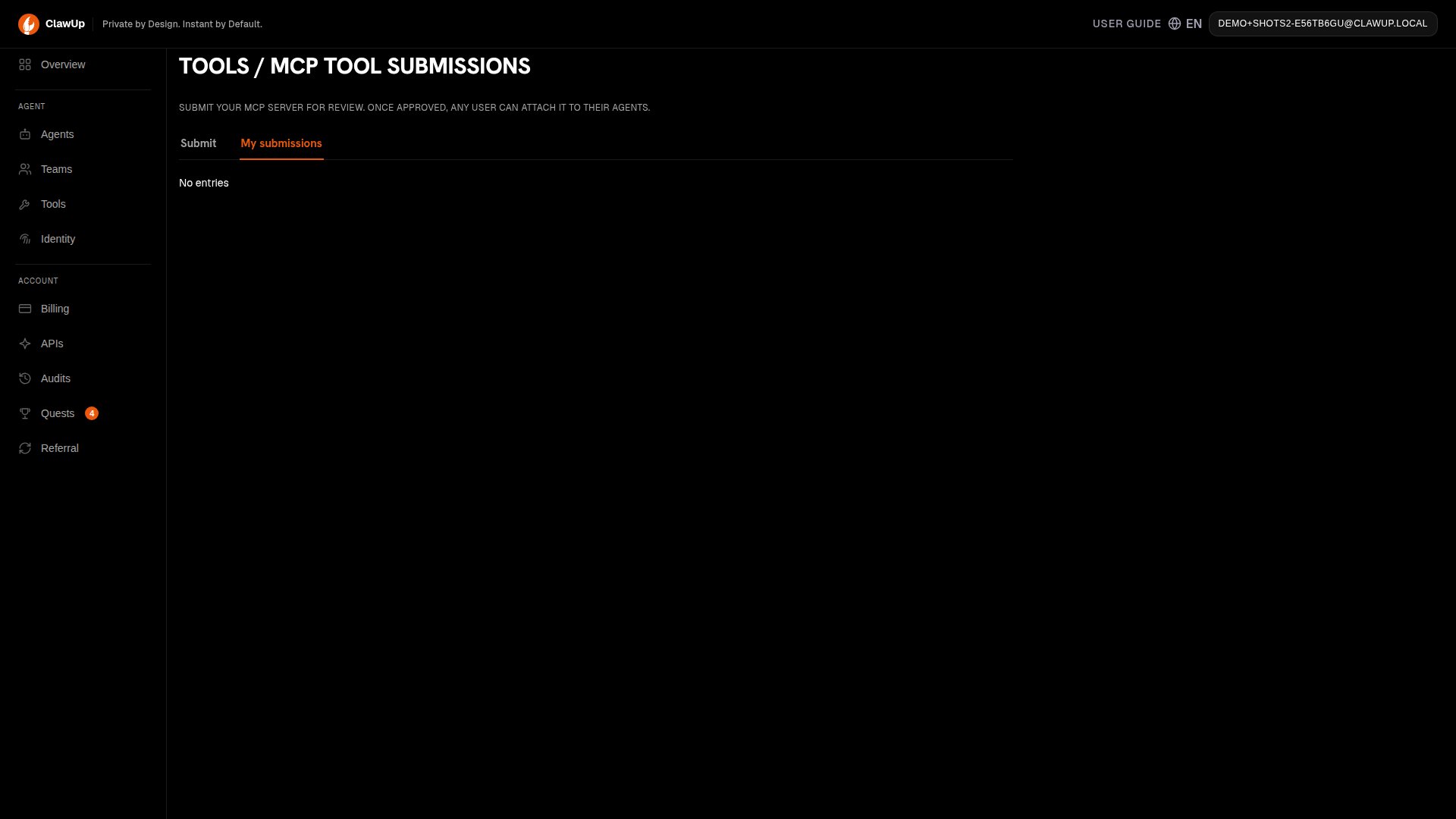
 You'll see your submission immediately under the **My submissions** sub-tab with status `pending`.
 ### Importing from the MCP registry
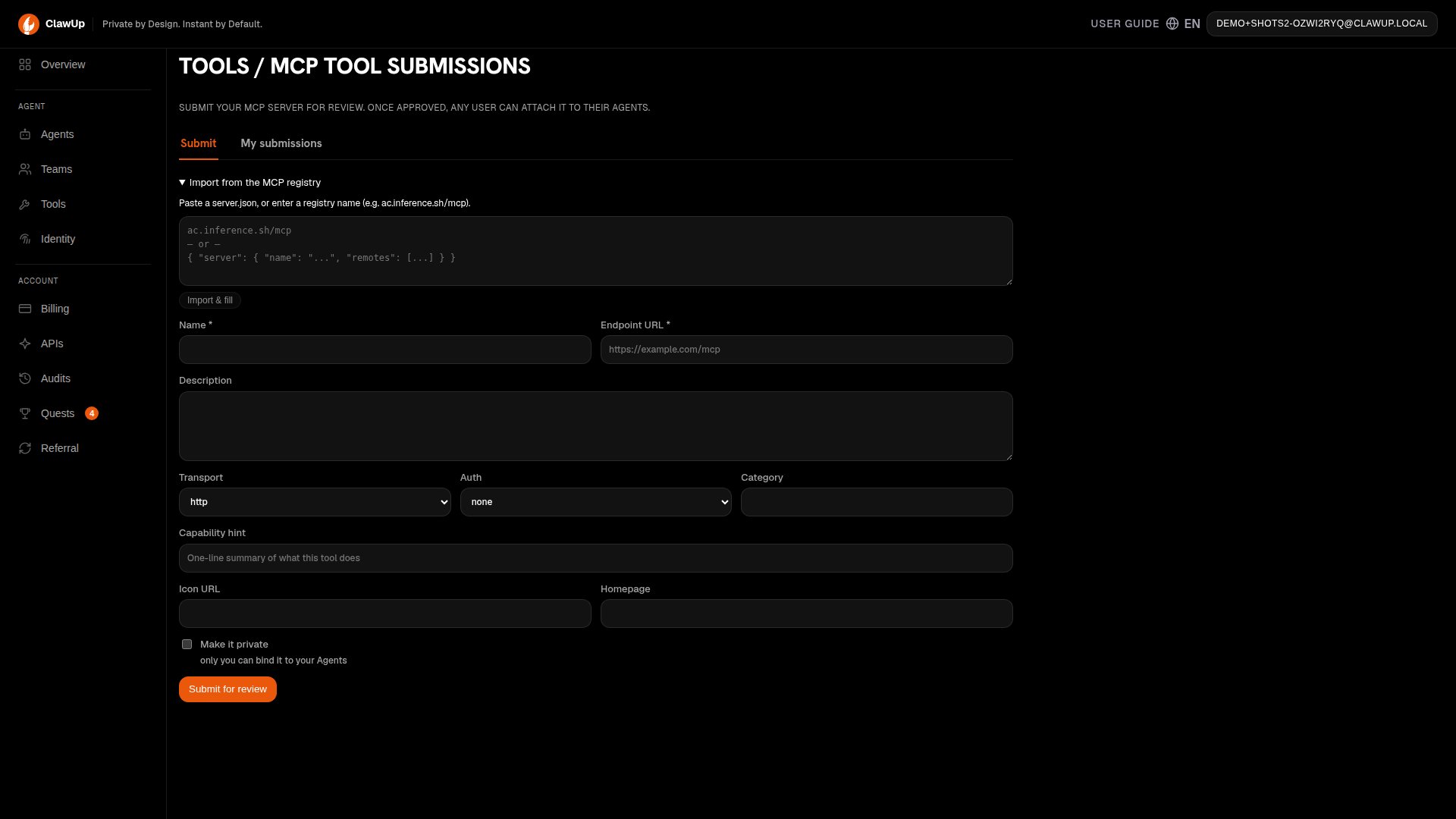
If your tool is already published in a registry like `ac.inference.sh`, expand **Import from the MCP registry** at the top of the form, paste the registry name (e.g. `ac.inference.sh/mcp`) or a `server.json` blob, and click **Import & fill** to populate the fields automatically.
### Importing from the MCP registry
If your tool is already published in a registry like `ac.inference.sh`, expand **Import from the MCP registry** at the top of the form, paste the registry name (e.g. `ac.inference.sh/mcp`) or a `server.json` blob, and click **Import & fill** to populate the fields automatically.
 ***
## What happens during review
While your submission is `pending`:
* It appears in your **My submissions** tab.
* It appears in your own `/api/v1/tools` list with `owned_by_viewer = true` so you can bind it to your own Agents as a draft, even before it's approved publicly.
* It does **not** appear in any other user's marketplace.
* The admin sees it in the review queue. Ping [@clawup](https://t.me/clawup) on Telegram if you'd like them to look sooner.
The admin runs an automated probe against your endpoint and decides:
* **Approve** — your submission moves to `approved`. If you set visibility to `public`, it now shows up in every user's Tool Marketplace. Approved entries become read-only for the submitter; you can no longer edit or withdraw them.
* **Reject** — admin attaches notes explaining why (e.g. "endpoint missing handshake field"). You'll see status `rejected` along with the notes under **My submissions**.
There's no SLA on review — typically a few hours to a day depending on the queue.
***
## Handling a rejection
You can edit a rejected submission and resubmit it. Editing flips the status back to `pending` and clears the previous reviewer notes:
1. Open **My submissions**, find the rejected entry.
2. Click **Edit**.
3. Address the reviewer's notes (often: fix the endpoint URL, add an auth scheme, or expose the missing handshake).
4. Click **Save**.
The same row is re-queued for the admin — no need to start over. You can also withdraw a `pending` or `rejected` submission entirely by clicking **Delete**.
***
## Binding an approved tool to an Agent
Once your submission is approved (or while it's still pending and owned by you):
1. Open any Agent and go to **Tools**.
2. Find the tool by name, click **Install**.
3. If the tool's auth scheme is `api_key`, paste the key when prompted. ClawUp stores it encrypted alongside the binding and injects it at runtime.
The tool is now wired into the Agent's MCP runtime. The Agent can call any of the tool's functions on its next turn.
***
## Common errors
| Error code | What it means |
| -------------------------- | --------------------------------------------------------------------------------------------- |
| `MCP_ENDPOINT_PRIVATE` | The endpoint resolves to a private/loopback address. Use a public HTTPS URL. |
| `MCP_REGISTRY_NAME_EXISTS` | Another submission already uses this name (case-insensitive). Pick a different one. |
| `MCP_REGISTRY_INVALID` | The payload failed schema validation — check the body of the response for the specific field. |
| `MCP_SUBMISSION_LIMIT` | You already have 5 pending submissions. Wait for review or withdraw one. |
| `MCP_SUBMISSION_LOCKED` | You tried to edit or withdraw an approved entry. Submit a new entry to supersede it. |
| `MCP_SUBMISSION_404` | The submission ID doesn't exist or isn't yours. |
***
## See also
* [Claw Connect](./claw-connect) — the agent-to-agent communication MCP that ships with every ClawUp runtime.
* [Teams](./teams) — how multiple Agents coordinate using MCP tools.
***
## What happens during review
While your submission is `pending`:
* It appears in your **My submissions** tab.
* It appears in your own `/api/v1/tools` list with `owned_by_viewer = true` so you can bind it to your own Agents as a draft, even before it's approved publicly.
* It does **not** appear in any other user's marketplace.
* The admin sees it in the review queue. Ping [@clawup](https://t.me/clawup) on Telegram if you'd like them to look sooner.
The admin runs an automated probe against your endpoint and decides:
* **Approve** — your submission moves to `approved`. If you set visibility to `public`, it now shows up in every user's Tool Marketplace. Approved entries become read-only for the submitter; you can no longer edit or withdraw them.
* **Reject** — admin attaches notes explaining why (e.g. "endpoint missing handshake field"). You'll see status `rejected` along with the notes under **My submissions**.
There's no SLA on review — typically a few hours to a day depending on the queue.
***
## Handling a rejection
You can edit a rejected submission and resubmit it. Editing flips the status back to `pending` and clears the previous reviewer notes:
1. Open **My submissions**, find the rejected entry.
2. Click **Edit**.
3. Address the reviewer's notes (often: fix the endpoint URL, add an auth scheme, or expose the missing handshake).
4. Click **Save**.
The same row is re-queued for the admin — no need to start over. You can also withdraw a `pending` or `rejected` submission entirely by clicking **Delete**.
***
## Binding an approved tool to an Agent
Once your submission is approved (or while it's still pending and owned by you):
1. Open any Agent and go to **Tools**.
2. Find the tool by name, click **Install**.
3. If the tool's auth scheme is `api_key`, paste the key when prompted. ClawUp stores it encrypted alongside the binding and injects it at runtime.
The tool is now wired into the Agent's MCP runtime. The Agent can call any of the tool's functions on its next turn.
***
## Common errors
| Error code | What it means |
| -------------------------- | --------------------------------------------------------------------------------------------- |
| `MCP_ENDPOINT_PRIVATE` | The endpoint resolves to a private/loopback address. Use a public HTTPS URL. |
| `MCP_REGISTRY_NAME_EXISTS` | Another submission already uses this name (case-insensitive). Pick a different one. |
| `MCP_REGISTRY_INVALID` | The payload failed schema validation — check the body of the response for the specific field. |
| `MCP_SUBMISSION_LIMIT` | You already have 5 pending submissions. Wait for review or withdraw one. |
| `MCP_SUBMISSION_LOCKED` | You tried to edit or withdraw an approved entry. Submit a new entry to supersede it. |
| `MCP_SUBMISSION_404` | The submission ID doesn't exist or isn't yours. |
***
## See also
* [Claw Connect](./claw-connect) — the agent-to-agent communication MCP that ships with every ClawUp runtime.
* [Teams](./teams) — how multiple Agents coordinate using MCP tools.