> ## Documentation Index
> Fetch the complete documentation index at: https://docs.clawup.org/llms.txt
> Use this file to discover all available pages before exploring further.
# Quick Start
> Get your first Agent running in minutes
Welcome to ClawUp — the fastest way to deploy your own AI assistant. No servers to manage, no complex setup. Just sign up, create your Agent, connect a messaging channel, and start chatting.
This guide covers three steps:
1. **Create Your Agent for Free** — deploy an AI assistant in seconds
2. **Pair Your Channel** — connect Telegram, Feishu, or Slack and start talking
3. **Explore Tools** — add tools and skills to make it smarter
## Prerequisites
Before you begin, make sure you have:
* A web browser (Chrome, Firefox, Safari, or Edge)
* A Google or GitHub account (for sign-in), or an email address
* A Telegram, Feishu, or Slack account — only needed if you want to connect a channel now. Connecting a channel is optional at create time; you can always chat via the built-in Web Chat first and add a channel later.
***
## Step 1: Sign Up & Create Your Agent for Free
### 1.1 Create Your Account
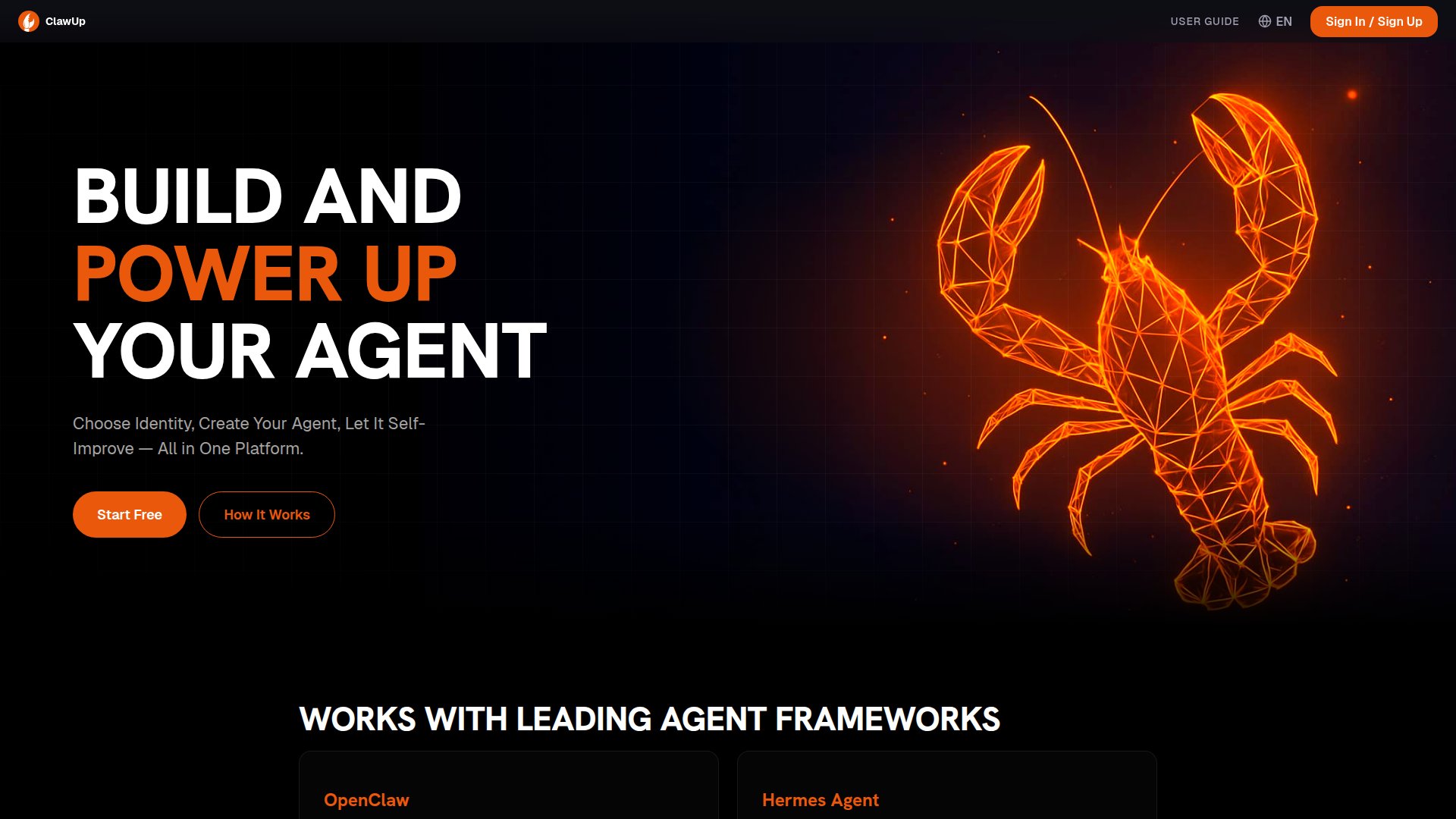
1. Go to [clawup.org](https://clawup.org)
2. Click **Start Free**, or **Sign In / Sign Up** in the top right
3. On the sign-in screen, choose a method to continue:
* **Google** — sign in with your Google account
* **GitHub** — sign in with your GitHub account
* **Sign in with Email** — enter your email, click **Send Code**, then enter the verification code from your inbox
4. Once signed in for the first time, you'll land straight on the **Create Your Agent** form
> 💡 **Tip:** The email verification code expires in a few minutes. Check your spam folder if you don't see it.
 ### 1.2 Create Your Agent
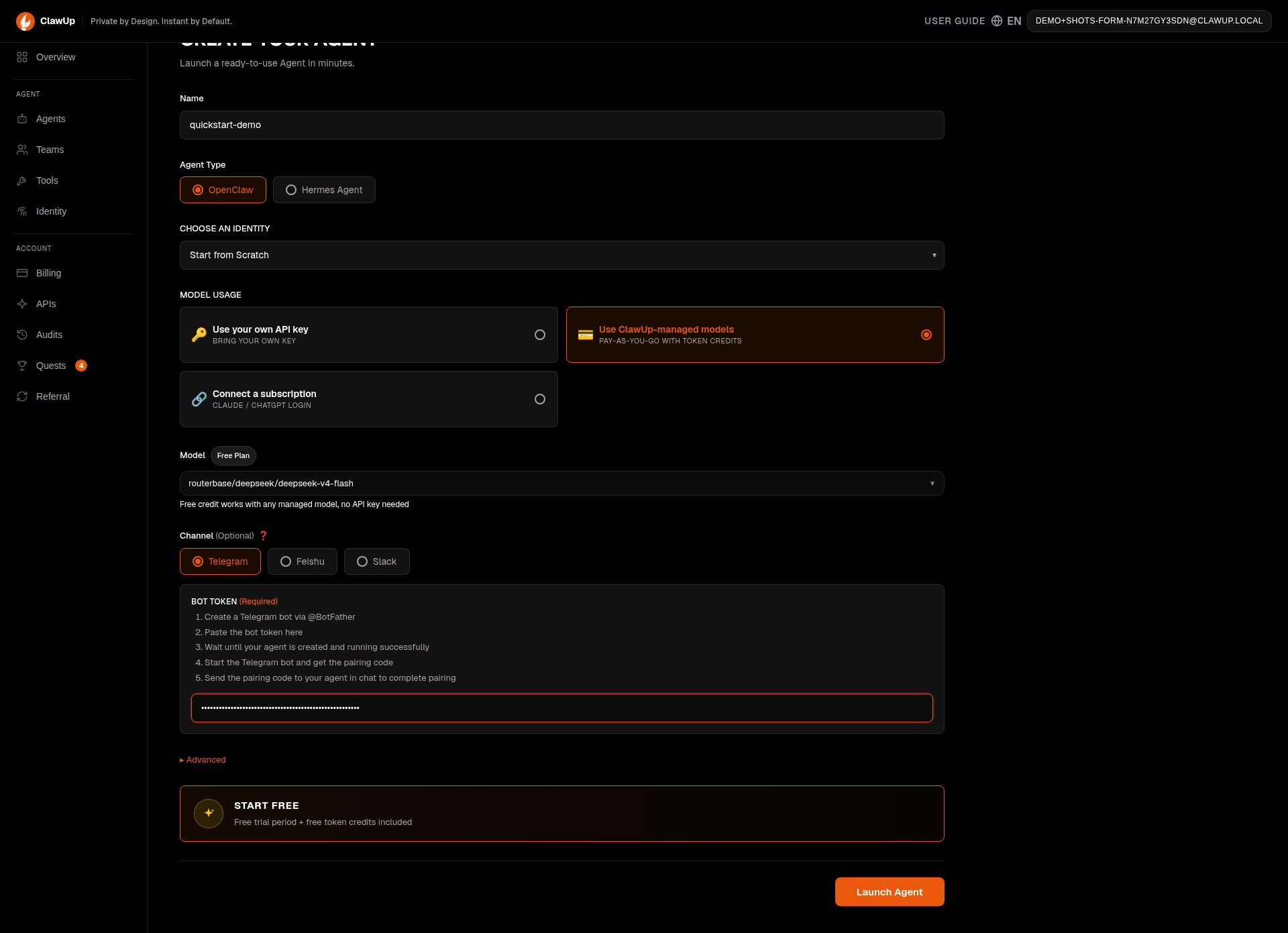
New accounts land directly on the create-agent form with the Free plan already selected — there's no separate plan-picker page to click through first.
1. **Name** — give your Agent a name (e.g., `my-assistant`)
2. **Agent Type** — the runtime engine. Defaults to **OpenClaw** (recommended, most mature path). **Hermes Agent** is available as an alternative — see [Runtimes](./runtimes) for the differences.
3. **Choose an Identity** — optional. Leave it on **Start from Scratch** for a blank assistant, or pick a pre-built identity to auto-install its curated skills.
4. **Model Usage** — three ways to pay for model calls:
* **Use ClawUp-managed models** — pay-as-you-go with token credits; pre-selected for the Free plan, no API key needed
* **Use your own API key** — bring your own key (see the provider table below)
* **Connect a subscription** — sign in with an existing Claude or ChatGPT subscription instead of a key; see [Connect a Subscription](./connect-subscription)
5. **Model** — for the Free plan this is pre-filled and shown with a **Free Plan** badge (currently a fast managed model, e.g. `deepseek-v4-flash`). Free credit works with any managed model — no API key needed. For **Use your own API key**, pick a model with the searchable model picker (OpenAI, Anthropic, Google, etc.) and provide a key:
| Provider | API Key Page |
| ---------- | ---------------------------------------------------------------------------------- |
| OpenAI | [platform.openai.com/api-keys](https://platform.openai.com/api-keys) |
| Anthropic | [console.anthropic.com/settings/keys](https://console.anthropic.com/settings/keys) |
| Google AI | [aistudio.google.com/app/apikey](https://aistudio.google.com/app/apikey) |
| DeepSeek | [platform.deepseek.com/api\_keys](https://platform.deepseek.com/api_keys) |
| OpenRouter | [openrouter.ai/settings/keys](https://openrouter.ai/settings/keys) |
6. **Channel** *(optional)* — pick a messaging platform to connect now, or skip it and add one later:
| Channel | Required Fields | How to get them |
| ------------ | ------------------------------------------ | ------------------------------------------------------------------------------------------------------------------------ |
| **Telegram** | Bot Token | Create a bot via [@BotFather](https://t.me/BotFather) on Telegram |
| **Feishu** | App ID, App Secret | Create a custom app on [Feishu Open Platform](https://open.feishu.cn/) |
| **Slack** | Bot Token (`xoxb-…`), App Token (`xapp-…`) | Create a Slack app at [api.slack.com/apps](https://api.slack.com/apps), enable Socket Mode, install it to your workspace |
See [Connect Channel](./connect-channel) for step-by-step instructions.
7. Click **Launch Agent**
### 1.2 Create Your Agent
New accounts land directly on the create-agent form with the Free plan already selected — there's no separate plan-picker page to click through first.
1. **Name** — give your Agent a name (e.g., `my-assistant`)
2. **Agent Type** — the runtime engine. Defaults to **OpenClaw** (recommended, most mature path). **Hermes Agent** is available as an alternative — see [Runtimes](./runtimes) for the differences.
3. **Choose an Identity** — optional. Leave it on **Start from Scratch** for a blank assistant, or pick a pre-built identity to auto-install its curated skills.
4. **Model Usage** — three ways to pay for model calls:
* **Use ClawUp-managed models** — pay-as-you-go with token credits; pre-selected for the Free plan, no API key needed
* **Use your own API key** — bring your own key (see the provider table below)
* **Connect a subscription** — sign in with an existing Claude or ChatGPT subscription instead of a key; see [Connect a Subscription](./connect-subscription)
5. **Model** — for the Free plan this is pre-filled and shown with a **Free Plan** badge (currently a fast managed model, e.g. `deepseek-v4-flash`). Free credit works with any managed model — no API key needed. For **Use your own API key**, pick a model with the searchable model picker (OpenAI, Anthropic, Google, etc.) and provide a key:
| Provider | API Key Page |
| ---------- | ---------------------------------------------------------------------------------- |
| OpenAI | [platform.openai.com/api-keys](https://platform.openai.com/api-keys) |
| Anthropic | [console.anthropic.com/settings/keys](https://console.anthropic.com/settings/keys) |
| Google AI | [aistudio.google.com/app/apikey](https://aistudio.google.com/app/apikey) |
| DeepSeek | [platform.deepseek.com/api\_keys](https://platform.deepseek.com/api_keys) |
| OpenRouter | [openrouter.ai/settings/keys](https://openrouter.ai/settings/keys) |
6. **Channel** *(optional)* — pick a messaging platform to connect now, or skip it and add one later:
| Channel | Required Fields | How to get them |
| ------------ | ------------------------------------------ | ------------------------------------------------------------------------------------------------------------------------ |
| **Telegram** | Bot Token | Create a bot via [@BotFather](https://t.me/BotFather) on Telegram |
| **Feishu** | App ID, App Secret | Create a custom app on [Feishu Open Platform](https://open.feishu.cn/) |
| **Slack** | Bot Token (`xoxb-…`), App Token (`xapp-…`) | Create a Slack app at [api.slack.com/apps](https://api.slack.com/apps), enable Socket Mode, install it to your workspace |
See [Connect Channel](./connect-channel) for step-by-step instructions.
7. Click **Launch Agent**
 #### Advanced Options
Click **Advanced** to expand these options. Defaults are auto-selected for most users.
| Option | Description | Default |
| -------------------- | ---------------------------------------------------------------------------------------- | ------------------------ |
| **Isolation Level** | Container isolation mode (separate from the Agent Type/runtime choice above). | `standard` (recommended) |
| **Docker Image Tag** | Container image version. Only change for a specific version or custom image. | Latest platform image |
| **Deploy Account** | Deployment identity. Only shown for allowlisted users. | `node` |
| **Restore Source** | Initial state source — **Fork From Existing Agent** or **Restore From Uploaded Backup**. | None (fresh Agent) |
### 1.3 Wait for Deployment
After clicking **Launch Agent**, your assistant will be provisioned:
* Status: `creating` → `setting up` → `running`
* This typically takes 1–3 minutes
* Once the status shows **running**, your Agent is live!
***
## Step 2: Pair Your Channel
If you connected a channel above, complete the pairing process below to start chatting from Telegram, Feishu, or Slack. Skipped this step? You can still chat via the built-in Web Chat, and add a channel later from your Agent's Overview page.
### 2.1 Pair Telegram
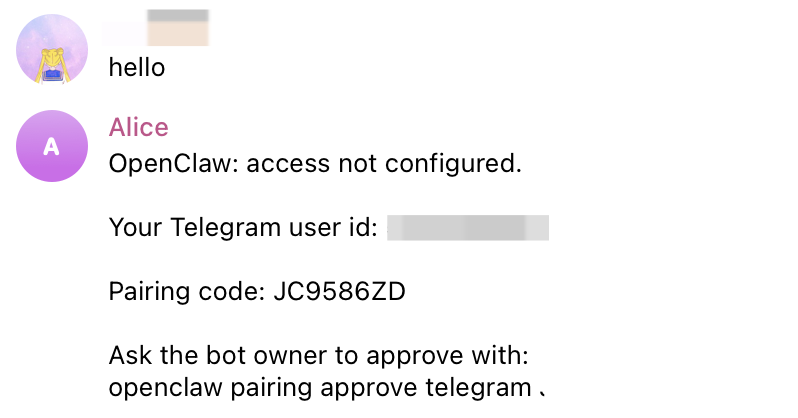
1. **Chat via Telegram** — Open Telegram and find your bot. Send a message — the bot will reply with a pairing code, for example:
> "Ask the bot owner to approve with: `openclaw pairing approve telegram XXXXXXX`"
Copy the entire command.
2. **Chat via Web (Built-in)** — Go back to the ClawUp Dashboard → Overview → **Open Agent Chat**. Send the full pairing code to your Agent.
3. Your Agent will reply: "Telegram has been approved". If your Agent does not indicate success, send this message to your Agent:
> Configure Telegram, run the command: `openclaw pairing approve telegram XXXXXX`
4. Go back to Telegram and send a message to your bot — the bot should reply. Your Telegram channel is now connected! ✅
#### Advanced Options
Click **Advanced** to expand these options. Defaults are auto-selected for most users.
| Option | Description | Default |
| -------------------- | ---------------------------------------------------------------------------------------- | ------------------------ |
| **Isolation Level** | Container isolation mode (separate from the Agent Type/runtime choice above). | `standard` (recommended) |
| **Docker Image Tag** | Container image version. Only change for a specific version or custom image. | Latest platform image |
| **Deploy Account** | Deployment identity. Only shown for allowlisted users. | `node` |
| **Restore Source** | Initial state source — **Fork From Existing Agent** or **Restore From Uploaded Backup**. | None (fresh Agent) |
### 1.3 Wait for Deployment
After clicking **Launch Agent**, your assistant will be provisioned:
* Status: `creating` → `setting up` → `running`
* This typically takes 1–3 minutes
* Once the status shows **running**, your Agent is live!
***
## Step 2: Pair Your Channel
If you connected a channel above, complete the pairing process below to start chatting from Telegram, Feishu, or Slack. Skipped this step? You can still chat via the built-in Web Chat, and add a channel later from your Agent's Overview page.
### 2.1 Pair Telegram
1. **Chat via Telegram** — Open Telegram and find your bot. Send a message — the bot will reply with a pairing code, for example:
> "Ask the bot owner to approve with: `openclaw pairing approve telegram XXXXXXX`"
Copy the entire command.
2. **Chat via Web (Built-in)** — Go back to the ClawUp Dashboard → Overview → **Open Agent Chat**. Send the full pairing code to your Agent.
3. Your Agent will reply: "Telegram has been approved". If your Agent does not indicate success, send this message to your Agent:
> Configure Telegram, run the command: `openclaw pairing approve telegram XXXXXX`
4. Go back to Telegram and send a message to your bot — the bot should reply. Your Telegram channel is now connected! ✅
 ### 2.2 Pair Feishu
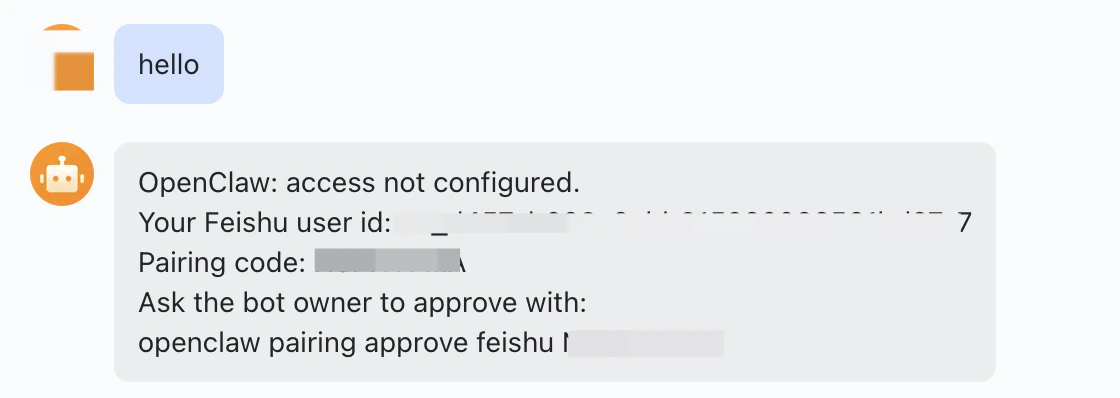
1. **Chat via Feishu** — Open Feishu and find your bot. Send a message — the bot will reply with a pairing code. Copy the entire command.
2. **Chat via Web (Built-in)** — Go back to the ClawUp Dashboard → Overview → **Open Agent Chat**. Send the full pairing code to your Agent.
3. Your Agent will reply: "Feishu has been approved". If your Agent does not indicate success, send this message to your Agent:
> Configure Feishu, run the command: `openclaw pairing approve feishu XXXXXX`
4. Go back to Feishu and send a message to your bot — the bot should reply. Your Feishu channel is now connected! ✅
### 2.2 Pair Feishu
1. **Chat via Feishu** — Open Feishu and find your bot. Send a message — the bot will reply with a pairing code. Copy the entire command.
2. **Chat via Web (Built-in)** — Go back to the ClawUp Dashboard → Overview → **Open Agent Chat**. Send the full pairing code to your Agent.
3. Your Agent will reply: "Feishu has been approved". If your Agent does not indicate success, send this message to your Agent:
> Configure Feishu, run the command: `openclaw pairing approve feishu XXXXXX`
4. Go back to Feishu and send a message to your bot — the bot should reply. Your Feishu channel is now connected! ✅
 ### 2.3 Pair Slack
1. **Chat via Slack** — In the Slack workspace where you installed your app, open a DM with the bot (or mention it in a channel it's in). Send a message — the bot will reply with a pairing code, similar to Telegram/Feishu above.
2. **Chat via Web (Built-in)** — Go back to the ClawUp Dashboard → Overview → **Open Agent Chat**. Send the full pairing code to your Agent.
3. Your Agent will reply: "Slack has been approved". If your Agent does not indicate success, send this message to your Agent:
> Configure Slack, run the command: `openclaw pairing approve slack XXXXXX`
4. Go back to Slack and message your bot — it should reply. Your Slack channel is now connected! ✅
> 💡 **Tip:** Web Chat is useful for quick testing. For daily use, Telegram, Feishu, or Slack provides a much better experience with notifications, mobile access, and rich media support.
***
## Step 3: Explore Tools
Make your Agent smarter by installing tools from the Marketplace.
1. Click **Tools** in the left sidebar → you'll see the **Marketplace** tab
2. Find a tool you want (e.g., **Claw Connect** for agent-to-agent communication)
3. Click **Add to Agent**, select which Agent to install it on
4. If the tool requires an API key, enter it when prompted
5. The tool is now active — your Agent can use its capabilities!
### 2.3 Pair Slack
1. **Chat via Slack** — In the Slack workspace where you installed your app, open a DM with the bot (or mention it in a channel it's in). Send a message — the bot will reply with a pairing code, similar to Telegram/Feishu above.
2. **Chat via Web (Built-in)** — Go back to the ClawUp Dashboard → Overview → **Open Agent Chat**. Send the full pairing code to your Agent.
3. Your Agent will reply: "Slack has been approved". If your Agent does not indicate success, send this message to your Agent:
> Configure Slack, run the command: `openclaw pairing approve slack XXXXXX`
4. Go back to Slack and message your bot — it should reply. Your Slack channel is now connected! ✅
> 💡 **Tip:** Web Chat is useful for quick testing. For daily use, Telegram, Feishu, or Slack provides a much better experience with notifications, mobile access, and rich media support.
***
## Step 3: Explore Tools
Make your Agent smarter by installing tools from the Marketplace.
1. Click **Tools** in the left sidebar → you'll see the **Marketplace** tab
2. Find a tool you want (e.g., **Claw Connect** for agent-to-agent communication)
3. Click **Add to Agent**, select which Agent to install it on
4. If the tool requires an API key, enter it when prompted
5. The tool is now active — your Agent can use its capabilities!
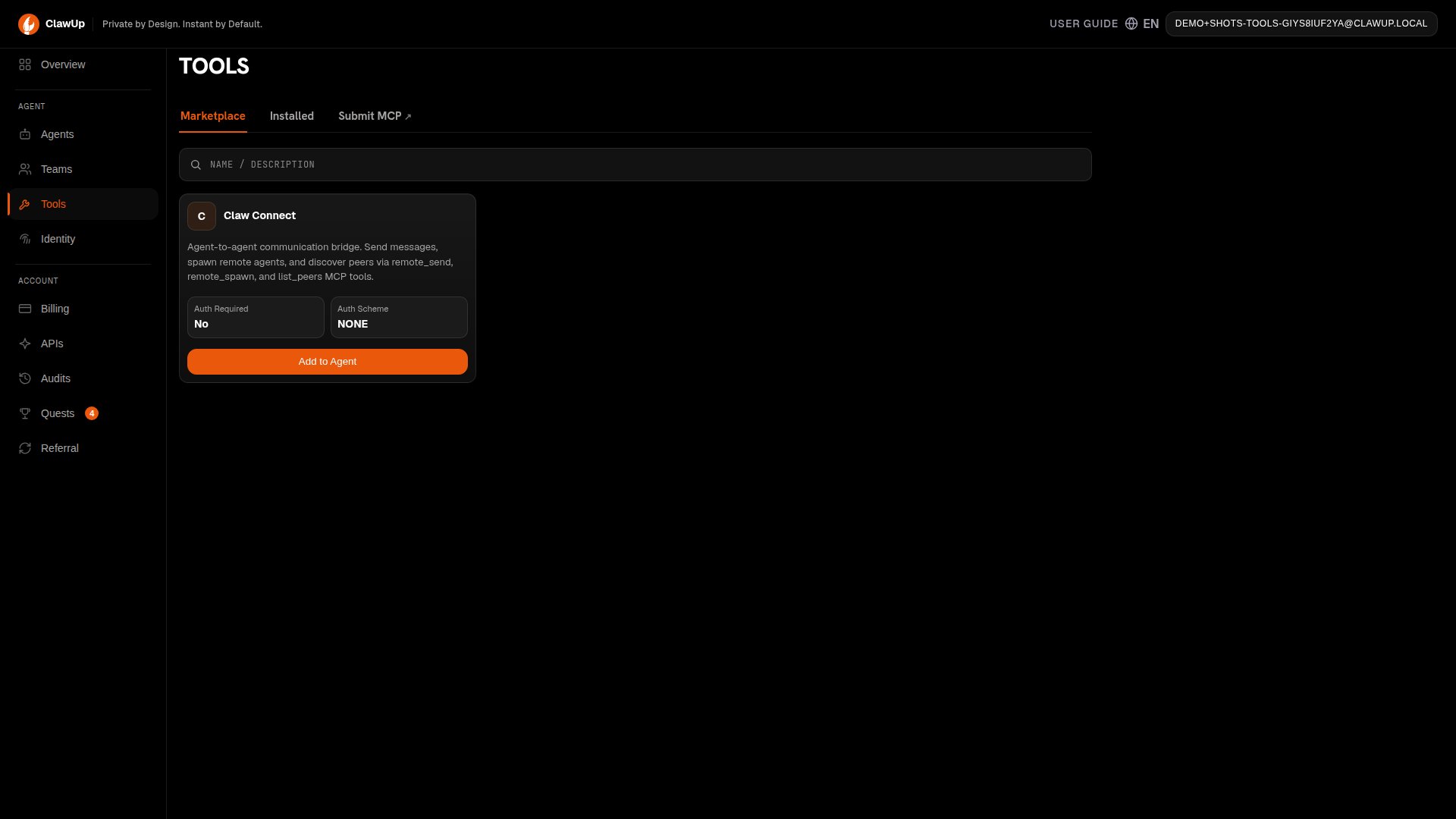 To manage installed tools, switch to the **Installed** tab where you can view, configure, or remove tools.
Don't see the tool you need? You can submit your own MCP server to the marketplace via **Submit MCP** in the top-right of the Marketplace tab. See [Submitting MCP Tools](/src/mcp-submissions) for the review workflow.
***
## Troubleshooting
| Problem | Solution |
| ----------------------------------------------------- | ------------------------------------------------------------------------------------------------------ |
| Can't receive verification email | Check your spam folder. The code expires after a few minutes — request a new one if it lapses. |
| Agent stuck on "creating" | Wait up to 5 minutes. If still stuck, delete and recreate. |
| Bot token invalid | Double-check the token from BotFather (Telegram) or your app settings (Feishu/Slack). No extra spaces. |
| No pairing code received | Make sure your Agent's status is "running" before messaging the bot. |
| Bot replies in Web Chat but not Telegram/Feishu/Slack | Channel pairing is not completed. Check the Dashboard for pairing status. |
| Feishu events not working | Confirm event subscription is set to WebSocket mode and `im.message.receive_v1` is added. |
| Slack bot not responding | Confirm Socket Mode is enabled and the App Token has the `connections:write` scope. |
***
## What's Next?
* Customize your Agent's personality by editing its system prompt
* **Create a Team** — go to **Teams** in the left sidebar to build a multi-agent group from templates or AI generation. See [Teams](./teams) for details.
* Set up scheduled tasks with cron jobs
* Bring your own API key or top up Token Credits for more model choices and higher usage limits
* Join the ClawUp community on Telegram: [@clawup](https://t.me/clawup)
**Need Help?**
* Documentation: [docs.clawup.org](https://docs.clawup.org)
* Community: [t.me/clawup](https://t.me/clawup)
To manage installed tools, switch to the **Installed** tab where you can view, configure, or remove tools.
Don't see the tool you need? You can submit your own MCP server to the marketplace via **Submit MCP** in the top-right of the Marketplace tab. See [Submitting MCP Tools](/src/mcp-submissions) for the review workflow.
***
## Troubleshooting
| Problem | Solution |
| ----------------------------------------------------- | ------------------------------------------------------------------------------------------------------ |
| Can't receive verification email | Check your spam folder. The code expires after a few minutes — request a new one if it lapses. |
| Agent stuck on "creating" | Wait up to 5 minutes. If still stuck, delete and recreate. |
| Bot token invalid | Double-check the token from BotFather (Telegram) or your app settings (Feishu/Slack). No extra spaces. |
| No pairing code received | Make sure your Agent's status is "running" before messaging the bot. |
| Bot replies in Web Chat but not Telegram/Feishu/Slack | Channel pairing is not completed. Check the Dashboard for pairing status. |
| Feishu events not working | Confirm event subscription is set to WebSocket mode and `im.message.receive_v1` is added. |
| Slack bot not responding | Confirm Socket Mode is enabled and the App Token has the `connections:write` scope. |
***
## What's Next?
* Customize your Agent's personality by editing its system prompt
* **Create a Team** — go to **Teams** in the left sidebar to build a multi-agent group from templates or AI generation. See [Teams](./teams) for details.
* Set up scheduled tasks with cron jobs
* Bring your own API key or top up Token Credits for more model choices and higher usage limits
* Join the ClawUp community on Telegram: [@clawup](https://t.me/clawup)
**Need Help?**
* Documentation: [docs.clawup.org](https://docs.clawup.org)
* Community: [t.me/clawup](https://t.me/clawup)