

Part 1: Connect Telegram
Step 1: Create a Telegram Bot
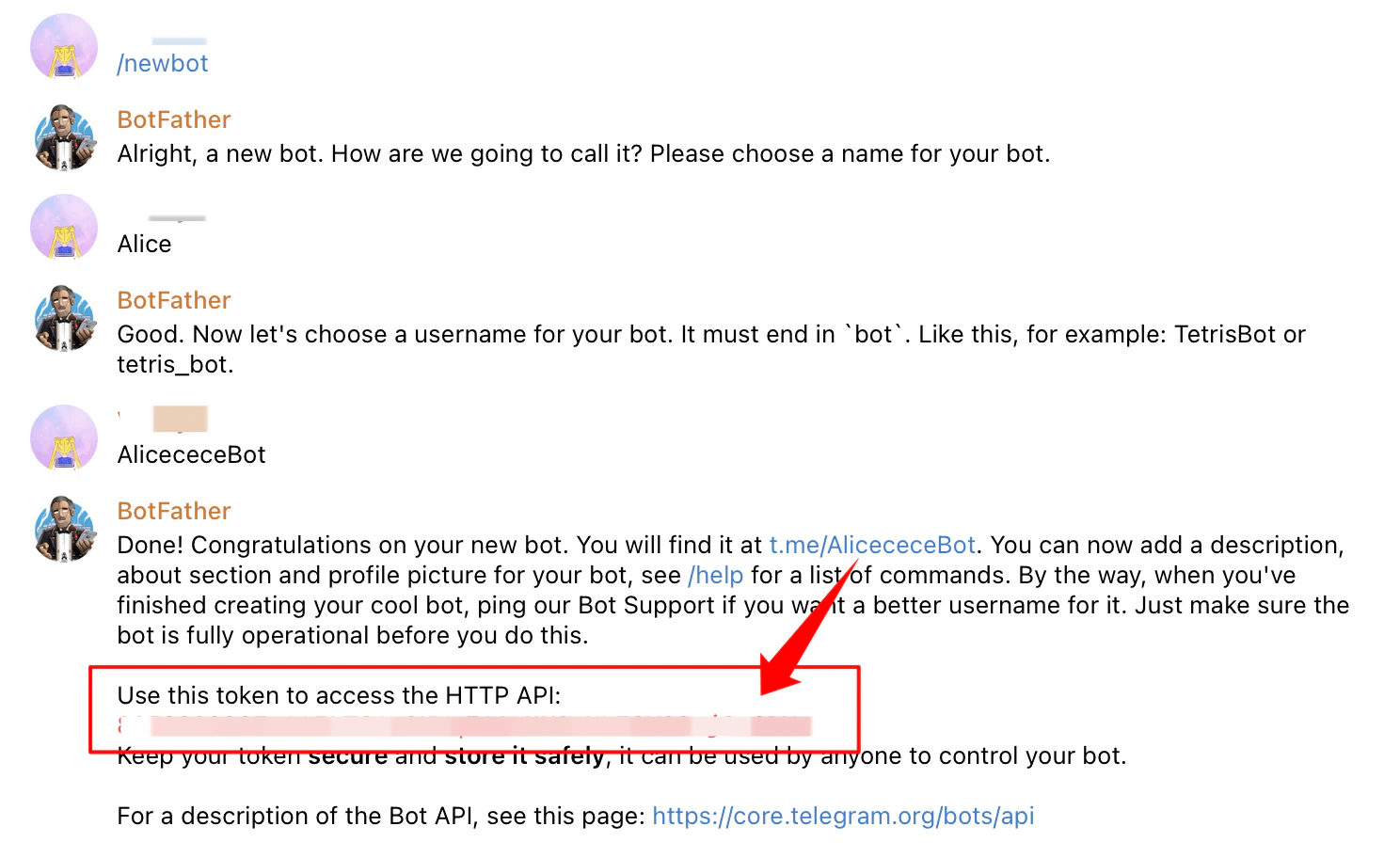
- Open Telegram and search for @BotFather
- Start a chat with BotFather and send the command:
/newbot - BotFather will ask you for a name for your bot — this is the display name (e.g., “My Assistant”)
- Then it will ask for a username — this must end in “bot” (e.g.,
TetrisBotortetris_bot) - Once created, BotFather will send you a message containing your Bot Token — it looks like this:
- Copy this token — you’ll use it when creating your Claw on ClawUp
⚠️ Keep your bot token secret. Anyone with this token can control your bot.
Step 2: Create Your Claw
- On ClawUp, create a new Claw and check Telegram as the channel
- Paste the Bot Token from BotFather
- Click Create Claw
Step 3: Wait for Deployment
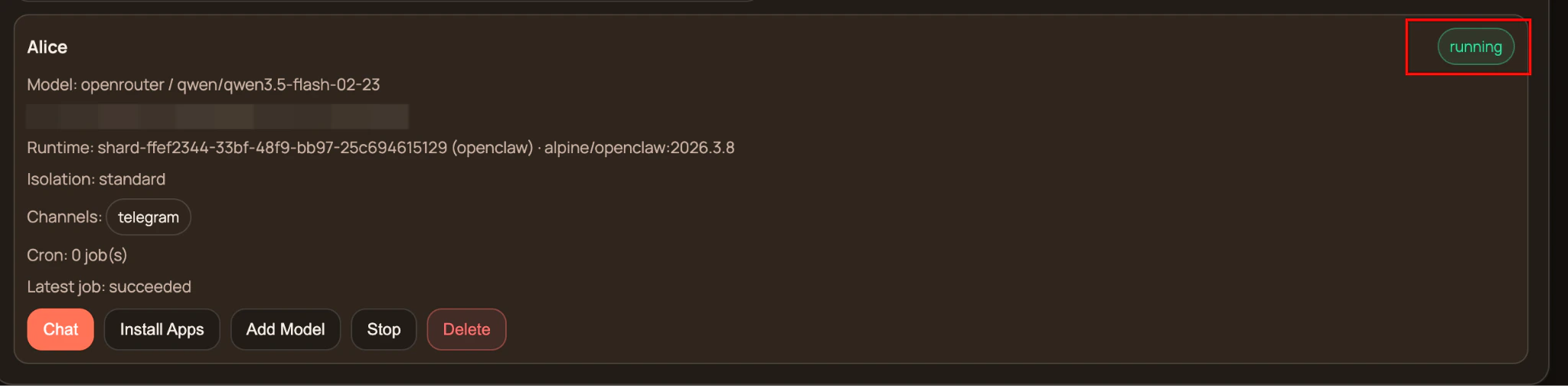
After clicking Create Claw:- The status will show
creating→reconciling→running - This usually takes 1–3 minutes
- Once the status shows running, your Claw is live
Step 4: Complete Telegram Pairing
Once your Claw is running, the Telegram bot needs to be paired:- Open Telegram and find your bot (search for the username you created)
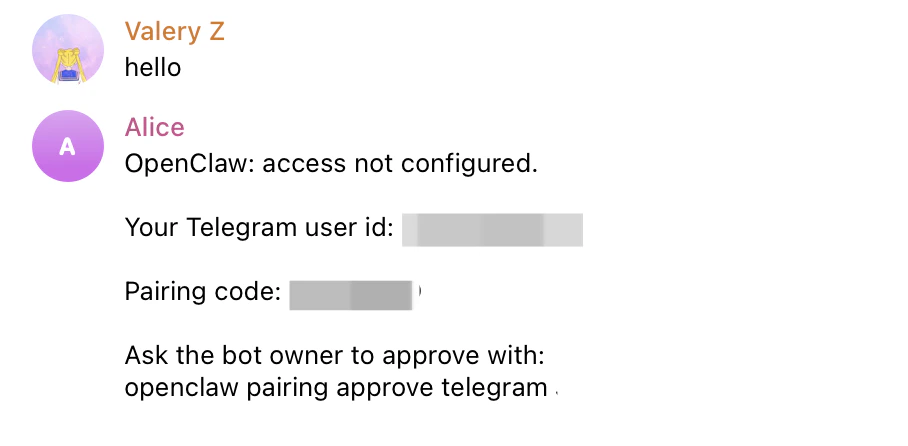
- Send any message to the bot (e.g., “hello”)
-
The bot will reply with a pairing code, for example:
“Ask the bot owner to approve with:
Copy the entire command.openclaw pairing approve telegram XXXXXXX” - Go back to ClawUp Dashboard → Overview → Open Claw Chat
- Send the full pairing code to your Claw
-
Your Claw will reply: “Telegram has been approved”. If your Claw does not indicate success, send this message:
Configure Telegram, run the command:
openclaw pairing approve telegram XXXXXX - Go back to Telegram and send a message to your bot
- The bot should reply — your Telegram channel is now connected! ✅
Part 2: Connect Feishu / Lark
Both China Feishu and international Lark are supported. ClawUp detects which one you are on automatically — there is nothing to choose. Setup is a single QR scan. There are no credentials to copy: the App ID and App Secret are filled in for you when the scan completes, which is why the ClawUp form has no fields for them.Connect
- On ClawUp, create your Claw and tick the Feishu / Lark channel
- Click Connect with QR code
- Scan the code with the Feishu or Lark mobile app — or open the link in a browser where you are already signed in
- On the confirmation page, either create a new app or pick an app you already have, then confirm
- already published — no version submission, no admin approval
- with the bot enabled
- in long-connection (WebSocket) mode
- with the message permissions granted — send as bot, read direct messages, read group @-mentions, fetch message resources
The QR code is valid for one hour and can be used once. If it expires, click Connect with QR code again. To move the Claw to a different Feishu app later, use Connect a different app.
If your workspace restricts app creation
Some Feishu workspaces only allow administrators to create apps. In that case have an administrator create the app once in the Feishu Open Platform (or the Lark Developer console), then run the QR step yourself and select that existing app on the confirmation page rather than creating a new one. The permissions, publishing and WebSocket mode are applied at confirmation either way.Final step: Complete Pairing
Once the Claw is running:- Open Feishu / Lark and find your bot (search for the bot name you set)
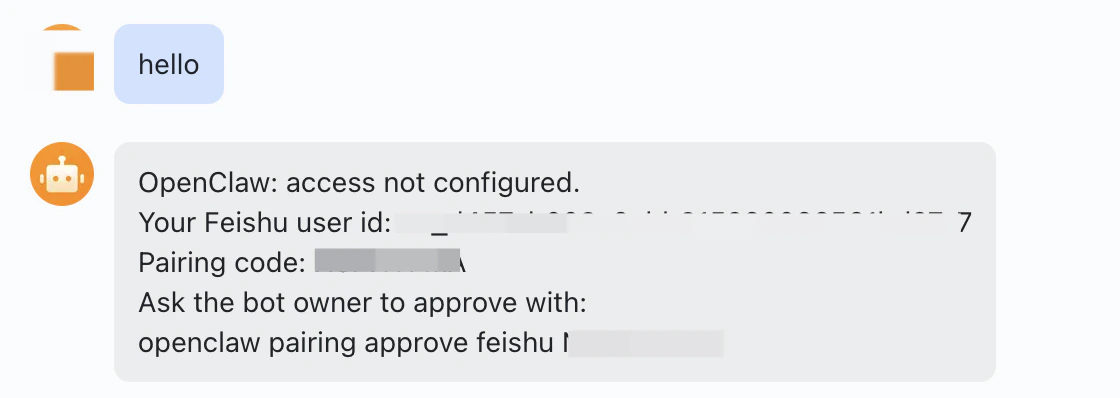
- Send any message to the bot
- The bot will reply with a pairing code. Copy the entire command
- Go back to ClawUp Dashboard → Overview → Open Claw Chat
- Send the full pairing code to your Claw
- Your Claw will reply: “Feishu has been approved.” If your Claw does not indicate success, send this message:
Configure Feishu, run the command:
openclaw pairing approve feishu XXXXXX - Go back to Feishu / Lark and send a message to your bot
- The bot should reply — your channel is now connected! ✅
Troubleshooting
Summary
Telegram:- @BotFather →
/newbot→ Get Bot Token - ClawUp → Create Claw → Check Telegram → Paste Token
- Wait 1–3 min for “running” status
- Message bot on Telegram → Get pairing code → Send to Claw
- Verify: bot replies on Telegram ✅
- ClawUp → Create Claw → Check Feishu / Lark → Connect with QR code
- Scan with Feishu / Lark → create a new app or pick an existing one → confirm
- App ID and App Secret are filled in automatically — nothing to copy
- Message the bot → Get pairing code → Send to Claw
- Verify: bot replies on Feishu / Lark ✅